Printing guide · Coloring Parcel · October 4, 2026
How to print coloring pages on A4 or US Letter
Choose the PDF that matches the paper in your printer. The same coloring artwork sits on slightly different page shapes in A4 and US Letter. Matching the file to the paper helps you keep the intended size and white margins.
The previews below come from the downloadable Christmas forest PDFs. We checked the digital page dimensions and margins. We have not tested a physical print on your printer.
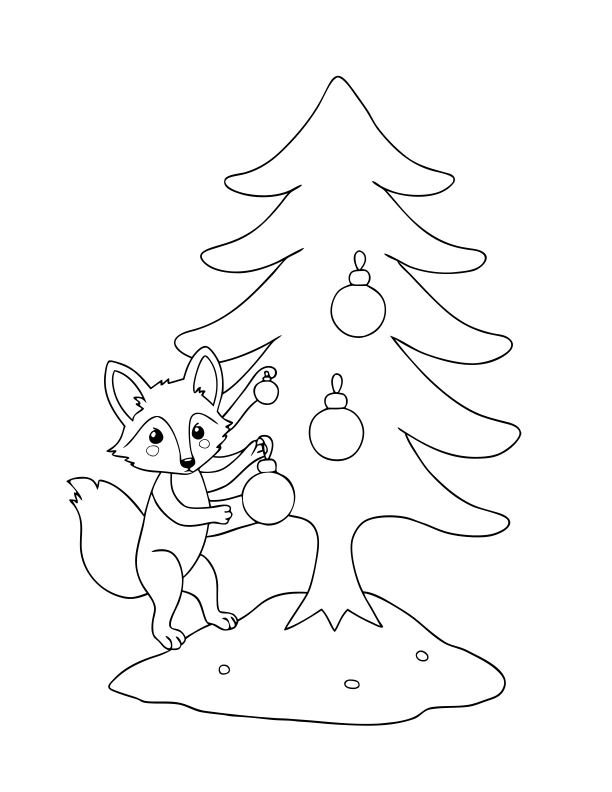
8.5 × 11 in
Digital PDF preview
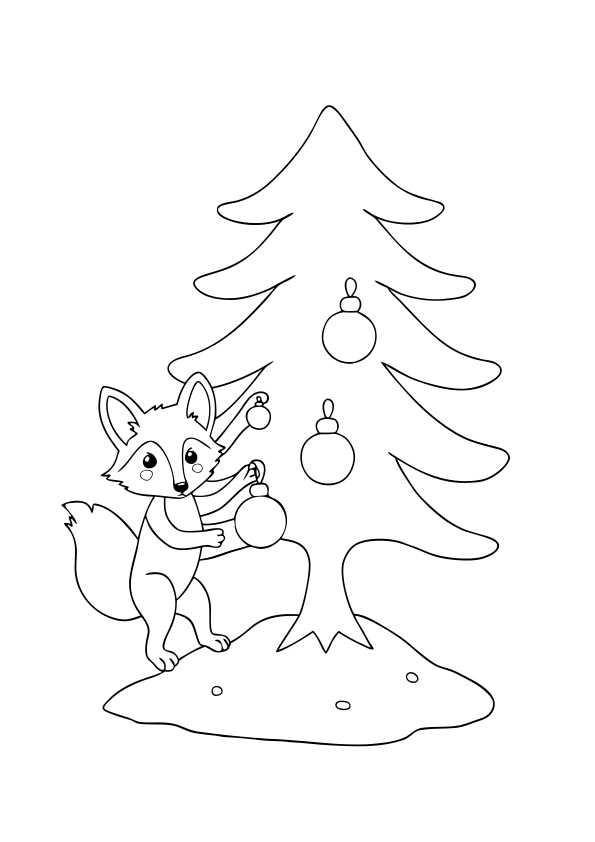
210 × 297 mm
Digital PDF preview
The artwork is the same in both files. Open the free six-page Christmas sample and downloads.
1. Match the download to your paper
US Letter is 8.5 × 11 inches. A4 is 210 × 297 mm, a little narrower and taller. Check the label on your paper before downloading.
Our free Christmas forest sample has six pages in both formats. You can download it without an account. A set you generate yourself uses the paper format you selected when planning it.
2. Open the PDF and check the print preview
Open the downloaded PDF in a PDF viewer, then choose Print. Select the same paper size as the file and use portrait orientation. Start with Actual Size or 100% when those options are available.
Check that the whole illustration fits inside the preview and that white space remains on all four sides. The files include at least half an inch of white margin. Printer controls and printable areas vary, so print one page before making a class or party batch.
3. Fix a cut edge or an unexpectedly small picture
If the preview cuts off an edge, first check the paper size and orientation. If the printer still cannot fit the page, try Fit or Fit to printable area. That can shrink the picture and add more white space.
If the picture looks too small, check whether several pages are being printed on one sheet. Use one page per sheet. Avoid borderless enlargement if it crops the artwork. The white margin is part of the printable design.
4. Review the line art before making copies
These pages are AI-generated and processed into black-and-white vectors. Small shapes can merge, an animal detail can look odd, or an area can be awkward to color. Zoom in on the preview and choose the pages that suit your activity.
For your own set, choose Simple for larger coloring spaces, review the suggested scenes, then generate a page. You can redraw an individual result for one page credit. Each redraw is another AI result and may still need review.
5. Use the right download for the job
The vector PDF is a convenient choice for printing a whole set. The PNG ZIP contains individual pages at 300 DPI for placing in a document or printing separately. Keep the intended page size when importing a PNG into another app.
Downloads contain black-and-white pages. The colored rabbit shown on our home page is a coloring example, not an automatic coloring feature. No book cover, bleed or cutting marks are included.
Plan a set for your next activity
To make your own collection, pick an original theme and plan 6 to 12 scenes. Planning is free. You can generate three pages free, then buy 60 page credits for $9 plus applicable tax. Each generation or redraw uses one credit.
Plan a Christmas forest set →Review the artwork and its suitability before sharing it. Commercial use is subject to our terms. AI output is not guaranteed to be exclusive or clear of third-party rights.